
PasteMaker Support
How to use PasteMaker, what the limits do, and what to check if something does not work.
1. What is PasteMaker?
PasteMaker is a clipboard history for Mac. It remembers what you copy and shows it in a panel from the menu bar. A hotkey opens the panel. Clicking an entry puts it back on the clipboard; you paste with ⌘V.
The app lives in the menu bar and does not appear in the Dock.
2. Requirements
- System: macOS 14 (Sonoma) or later.
- Install: Mac App Store or a DMG from this site.
3. Quick start
- Launch PasteMaker. The icon sits in the menu bar.
- Copy as usual (⌘C). The app stores text, images and file paths.
- Open the panel with the hotkey (default ⌥⌘V) or Show in the menu.
- Search or click a clip. It is back on the clipboard.
- Press ⌘V in the destination app.
4. History & clips
- Text: copied text. Right-click → Copy without Formatting copies plain text only.
- Images: copied images stay in local history.
- Files: file paths from the clipboard, not the files themselves.
- Keep permanently: editor checkbox or right-click. These clips are not removed by age, count or size limits.
- Passwords stay out of history.
5. Settings
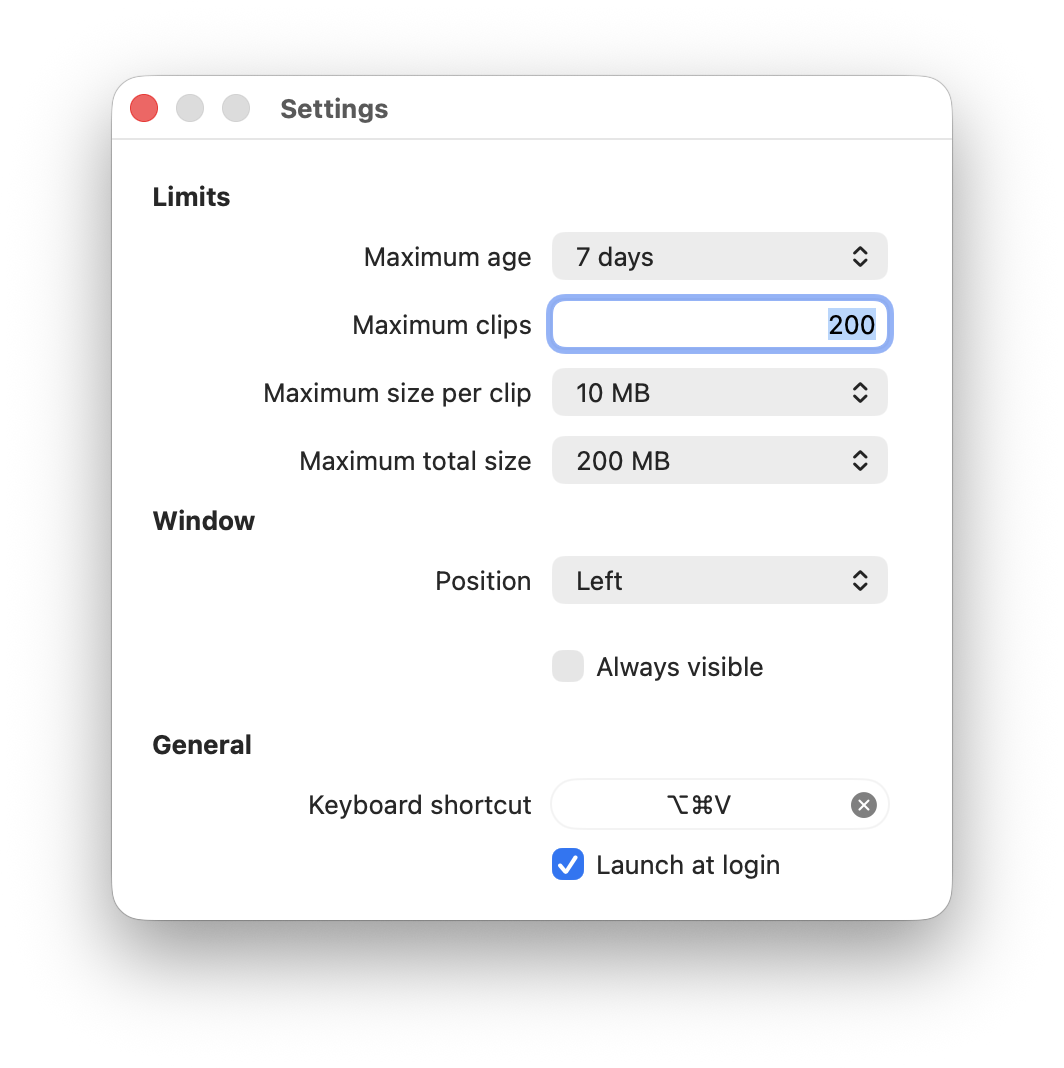
- Maximum age / count / size: automatic history cleanup.
- Position: panel at a screen edge or corner.
- Always visible: keep the panel open.
- Keyboard shortcut: your own hotkey.
- Launch at login: start PasteMaker when you log in.
6. Clipboard access
macOS may ask whether PasteMaker may use what you copy in other apps. Choose Allow. You can change this later under System Settings → Privacy & Security → Paste from Other Apps.
7. FAQ
Why doesn’t a clip appear in the other app by itself?
PasteMaker puts the selected clip on the clipboard. Paste with ⌘V in the app where you want it.
Is any data sent off this Mac?
Clipboard history stays on your Mac. See the privacy policy.
The hotkey does nothing.
Check Settings for an assigned shortcut and for conflicts with other shortcuts. macOS also blocks global hotkeys while you are typing in a password field.
Where is history stored?
On this Mac, with the app. Clearing history or uninstalling PasteMaker removes it.
8. Contact
Marco Wilka, Hamburg
Email: m.wilka@gmail.com